Atom collisions simulation
Index
DownloadInstructions
Example 1 - atom sizes
Example 2 - world view sizes
Example 3 - speed mode vs fixed mode
Example 4 - many atoms
Example 5 - full screen mode
Example 6 - start all atoms in one location
Example 7 - follow a few specific atoms
Version history
This application allows you to simulate what happens when atoms fully elastically bounce against each other in a box.
Depending on the speed of your CPU you should be able to simulate at least 1'000 atoms on a slow CPU. On a modern CPU, simulating 100'000 atoms is also possible. Slow CPUs can still do simulations of 100'000 atoms, but at a very low speed (FPS).
If you put too many atoms in too small of a space, you will get more of a plasma simulation rather than an elastic simulation.
The simulation always tries to run at 60 FPS to reduce the energy used. So, even if your CPU is capable of running the simulation faster, only 60 simulation steps are executed and shown per second. If your CPU can't run at 60 FPS, then the simulation will run as fast as your CPU allows for.
Download
Atom collissions v2.0.0| Size | = 11'661'356 bytes |
| CRC-32 | = 0a1c92cd |
| MD5 | = 49c47175091938136167c75b64e9ae54 |
| SHA2-256 | = 62caebf0d2606961a21427a4d2ac9ccbb7d12ca3f32612cb6d4852040caf2750 |
If you get an error about a missing dll on startup, then you need to download the Microsoft Visual C++ Redistributable libary pack from Microsoft's website:
https://aka.ms/vc14/vc_redist.x64.exe
Instructions
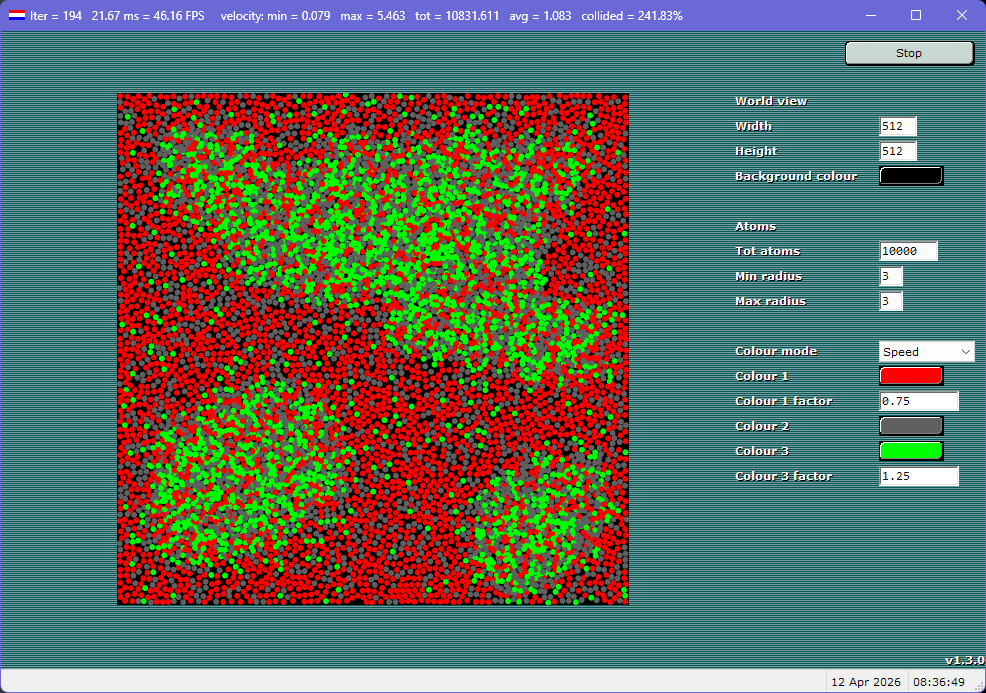
User interface
The left side contains the simulation.
The right side contains the settings.
The status bar contains info on the setting your mouse is hovering, and also the date and time.
The title bar of the window contains the following statistics of the last second of the running simulation:
- iter = the total amount of rendered frames in the current run
- average time in milliseconds used to calculate a frame
- FPS = the average amount of calculated frames per second
- velocity:
min = speed of the slowest atom
max = speed of the fastest atom
tot = total speed of all the atoms
avg = average speed of all the atoms
- collided = how many times atoms collide.
Example 1: 10% = on average every atom collides with one other atom every 10 iterations
Example 2: 100% = on average every atom collides with one other atom each iteration
Example 3: 500% = on average every atom collides with five other atoms each iteration
Shortcut keys
- left mouse button = start all atoms from that point
- right mouse button = toggle fullscreen mode
- F11 = toggle fullscreen mode
- ESC = exit fullscreen mode
Settings
Start/Stop button
The top right button is for starting and stopping the simulation.
World dimensions (width and height)
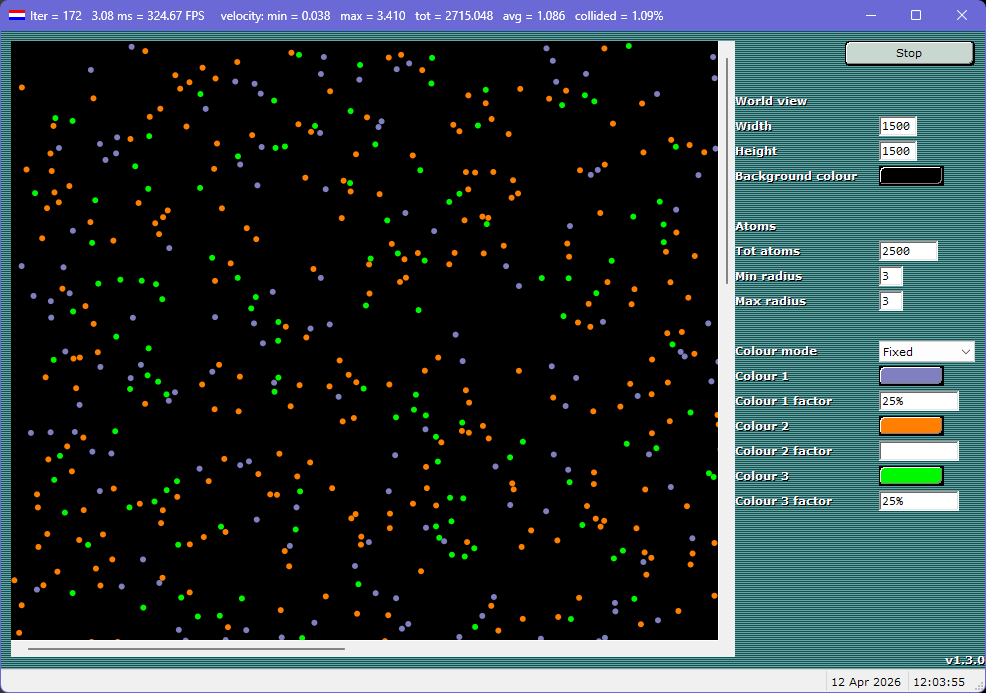
The world dimensions are for setting the size of the world's simulation. If the world size is too high and/or too wide, then scrollbars are automatically shown.
Background colour
The background colour allows you to choose the world's background colour. Although any colour is allowed, some colours may make the atoms harder to see. White and black backgrounds give a high amount of contrast, making the simulation clearer.
Tot atoms
The total amount of atoms in the simulation. The more atoms, the slower the simulation. Also, if you choose too many atoms, they may not fit in the world.
Radius (min and max)
The minimum and maximum radius can be used to set the random size of each atom. If you choose the minimum and maximum the same, then all atoms are the same size. Note that the atoms have no mass, so bigger atoms have the same amount of energy in a collision as the smaller atoms.
Colour mode : fixed
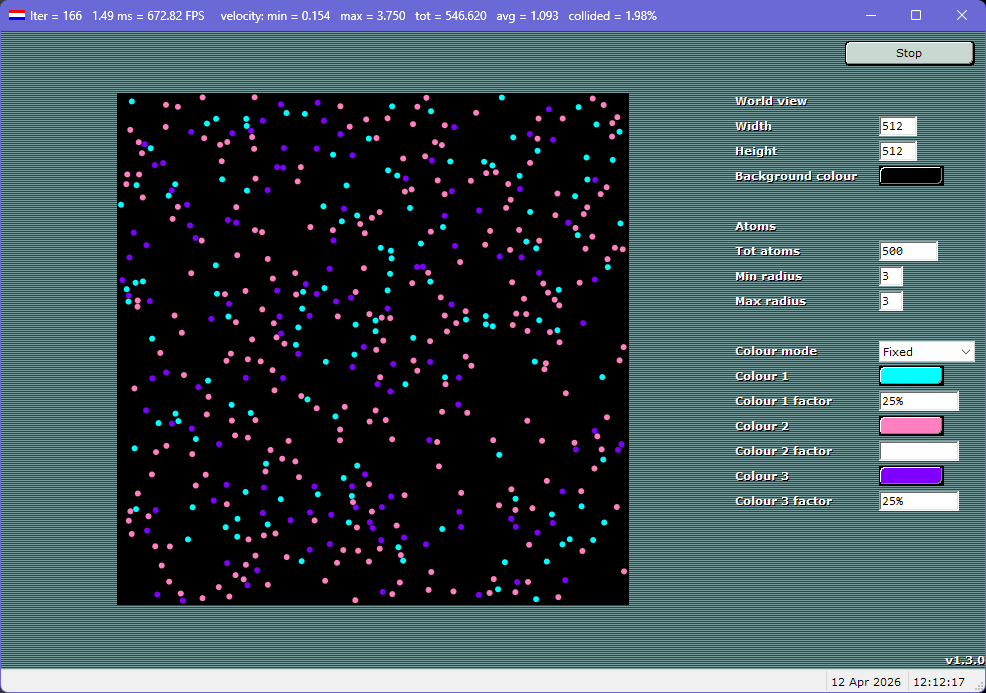
In fixed mode, the colour of an atom is determined randomly at the start and will not change.
- You can specify two of the three colour factors to determine how many atoms have those colours.
- You can set either an absolute number, or a percentage. Here are some examples:
123 means exactly 123 atoms will be that colour (if there are enough atoms).
12.34% means that 12.34 percent of the atoms will be that colour (if there are enough atoms).
Colour mode : speed
In speed mode, the colour of an atom is determined by its speed.
The average speed of all the atoms is approximately 1.0 pixels per step.
After every collision, the speed of an atom can change, and therefore its category can change.
The colour factors are the speeds in pixels per step of the simulation.
- Colour 1 is the colour of the slow atoms.
- Colour 1 factor specifies the maximum speed of an atom to belong to the slow atoms category.
For instance, 0.75 means that every atom moving slower than 0.75 pixels per step will be colour 1.
- Colour 2 is the colour of the average speed atoms.
- Colour 2 factor cannot be specified, because it is simply all the atoms which are neither fast nor slow.
- Colour 3 is the colour of the fast atoms.
- Colour 3 factor specifies the maximum speed of an atom to belong to the slow atoms category.
For instance, 1.25 means that every atom moving faster than 1.25 pixels per step will be colour 3.
Full screen mode
By clicking the 'maximize window' button in the top right of the window you can switch to full screen mode. When in full screen mode, you can press the ESC key to return to windowed mode.
To toggle between full screen mode on and off you can also click the right mouse button
Examples
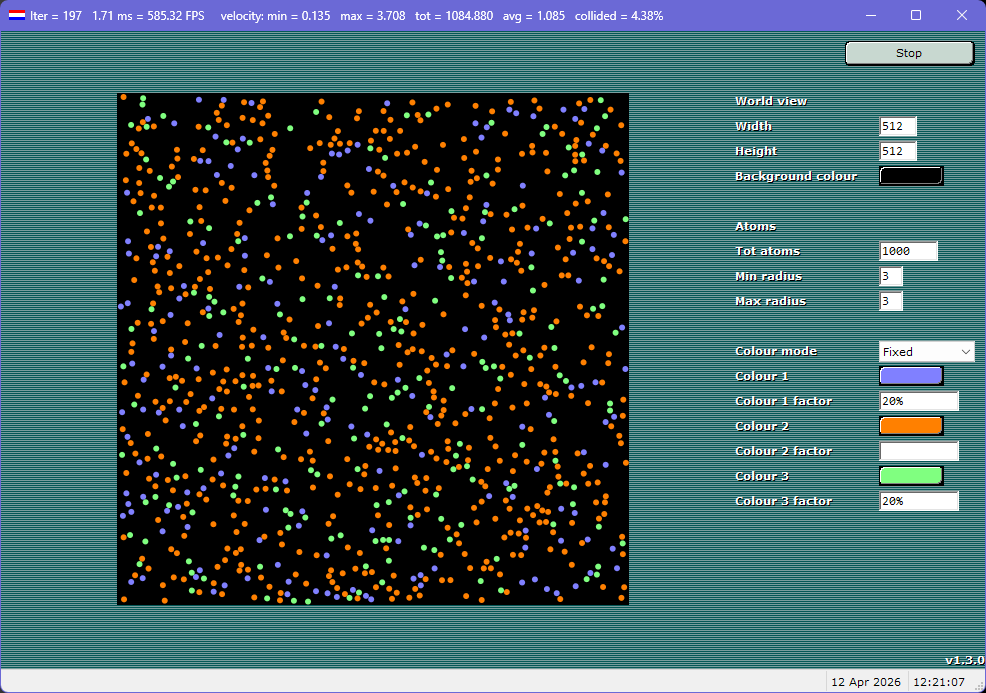
Example 1
Have every atom be the same size.
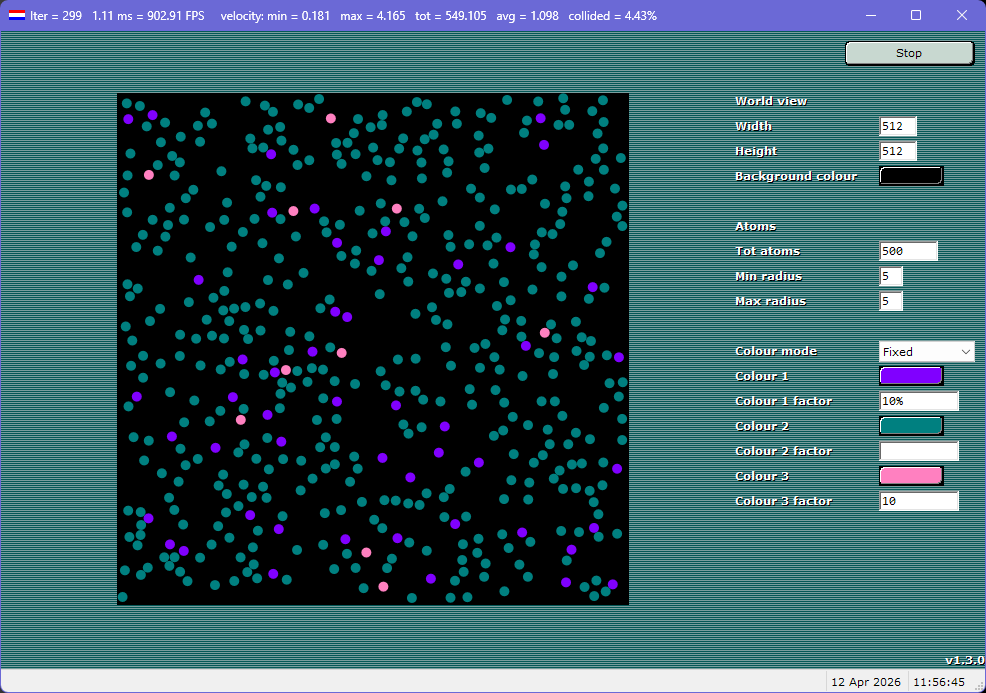
Have atoms be different sizes.
Example 2
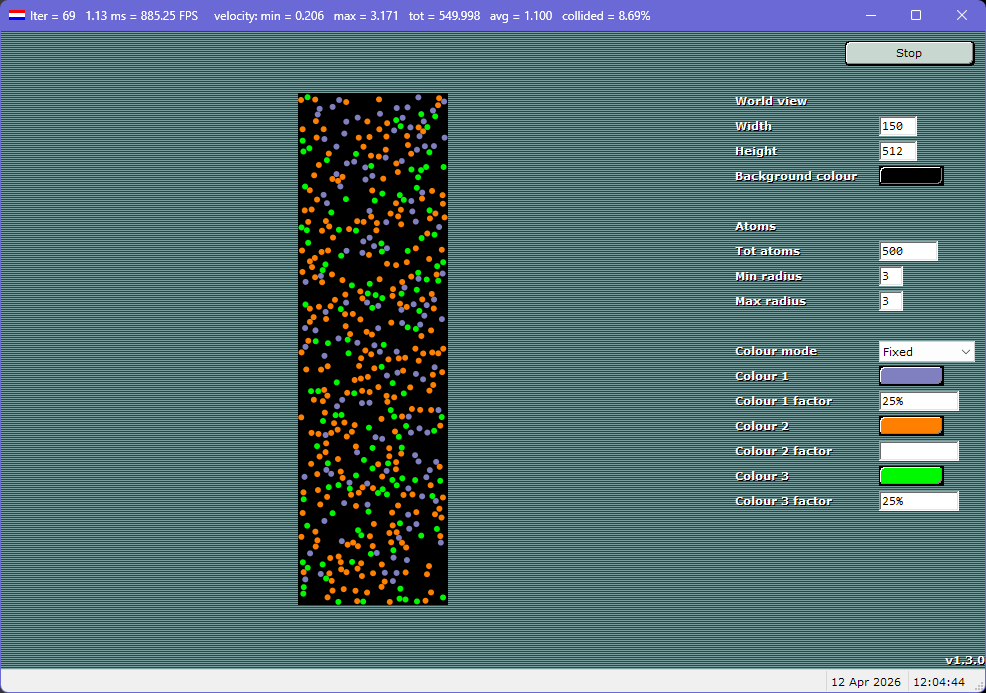
Scrollbars when the world is larger than your window.
Non-square world dimensions.
Example 3
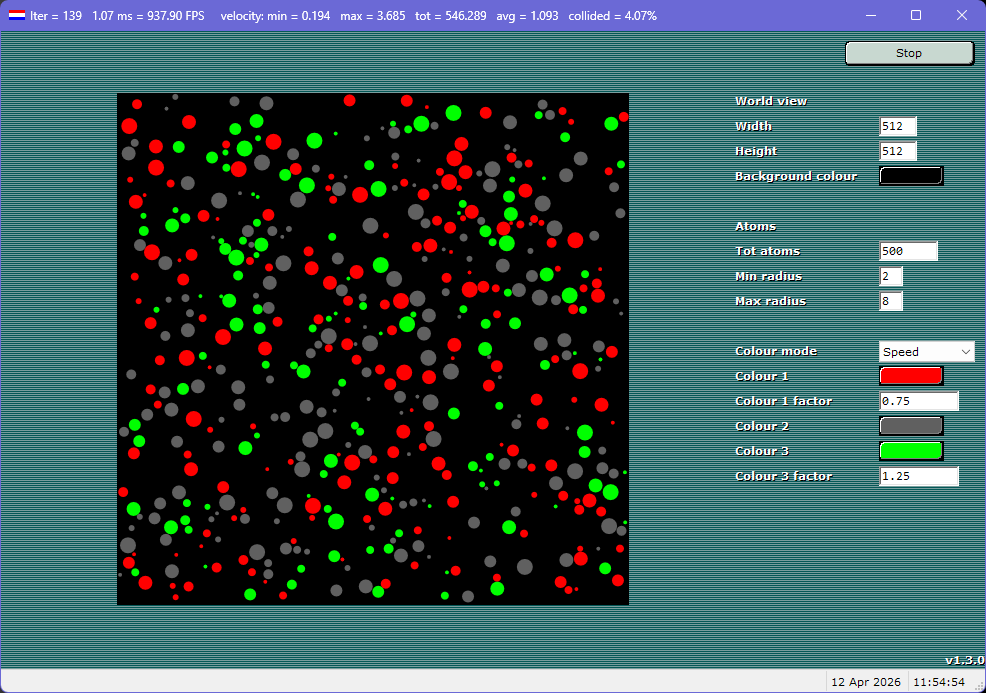
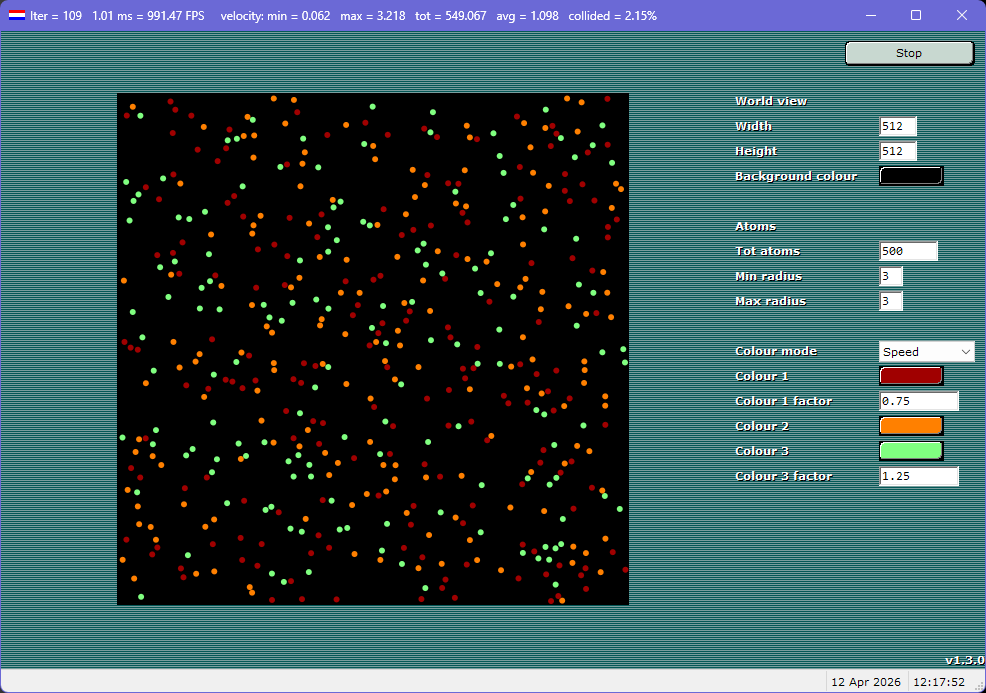
Speed mode, where atoms change colour depending on their current speed.
Colour 1 is the maximum speed of slow atoms (for instance, speed < 0.75).
Colour 2 is every average speed atom (for instance between 0.75 and 1.25).
Colour 3 is the minimum speed of fast atoms (for instance, speed > 1.25).
Fixed mode, where atoms have the same (fixed) colour from the start.
Example 4
We can also do many atoms.
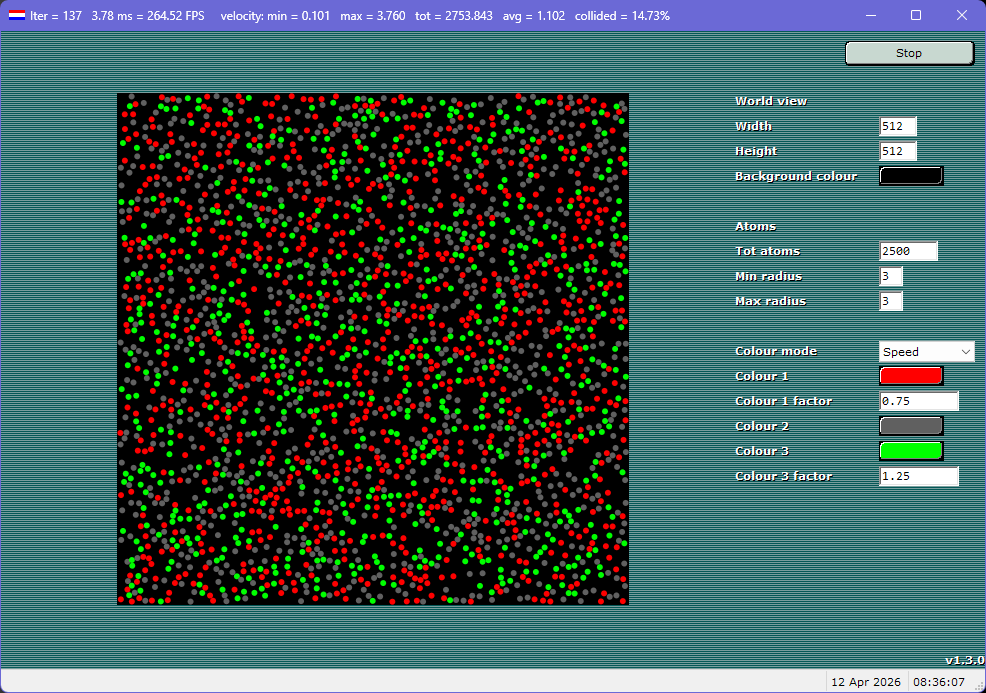
When you have too many atoms, the simulation behaves more like a plasma.
Example 5
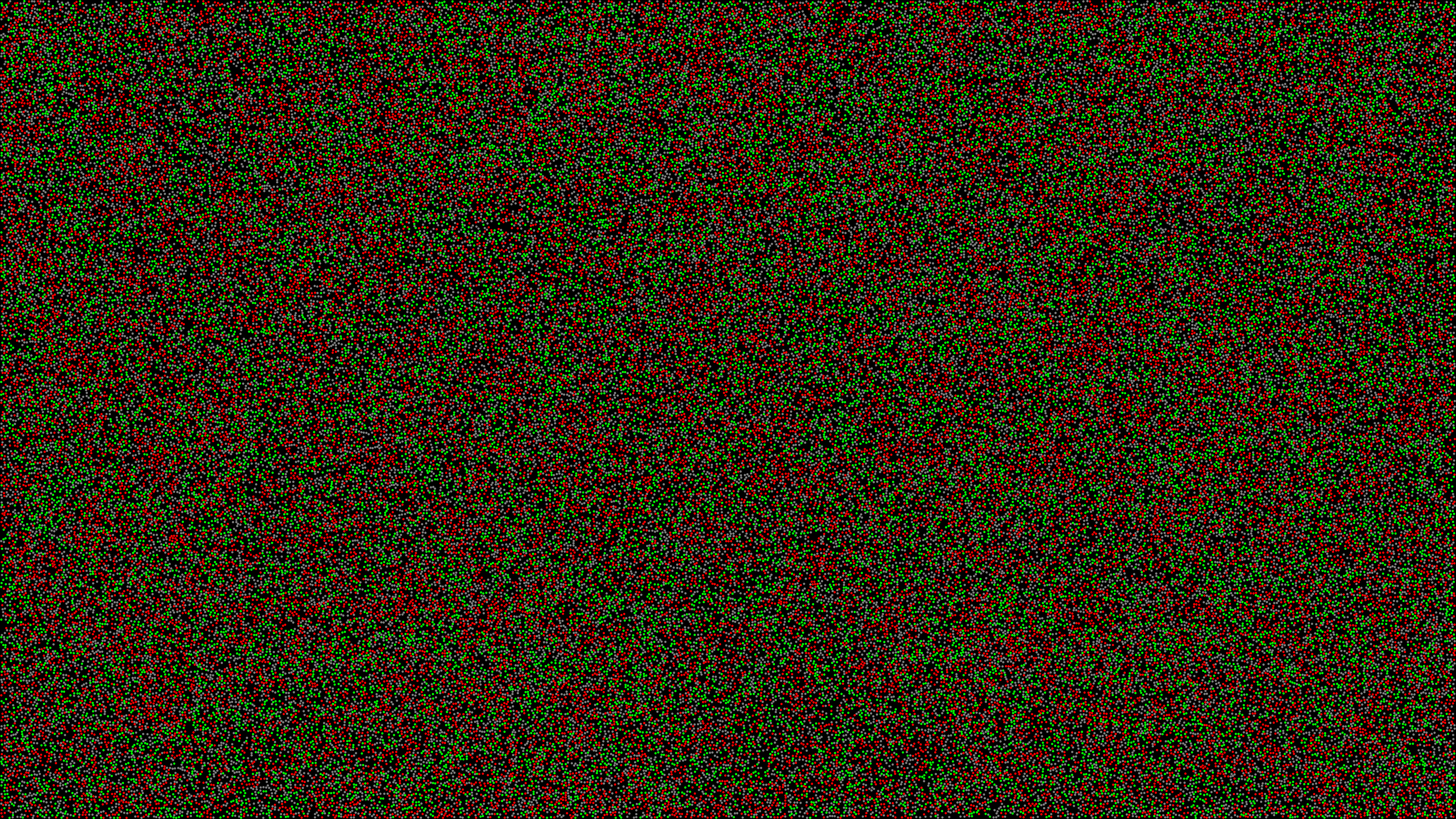
100'000 atoms on a 4k screen in full screen mode (so no window border and no user interface controls).
Restore windowed mode by pressing the ESC key.
Example 6
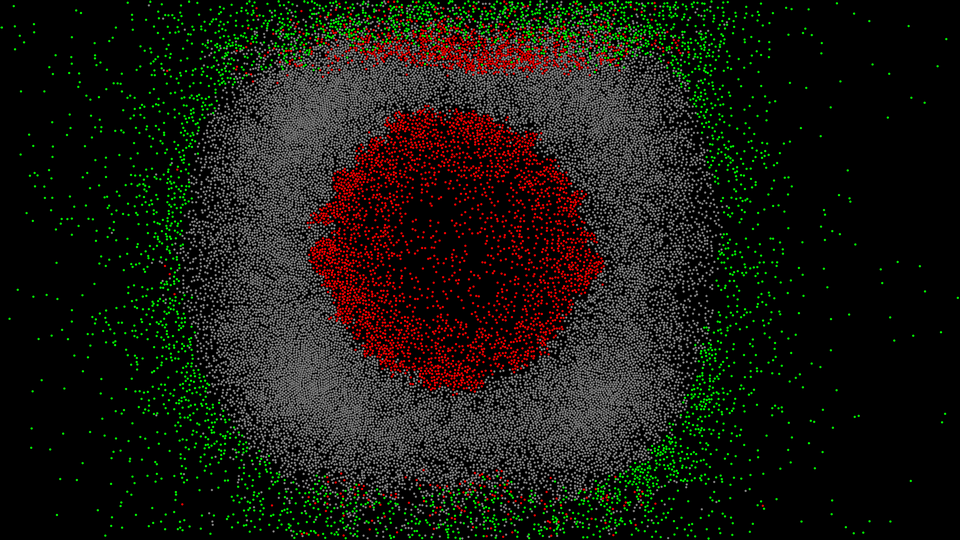
By clicking the left mouse button anywhere in the world view all atoms will spawn from that location.
You can for instance click near the center of the world view.
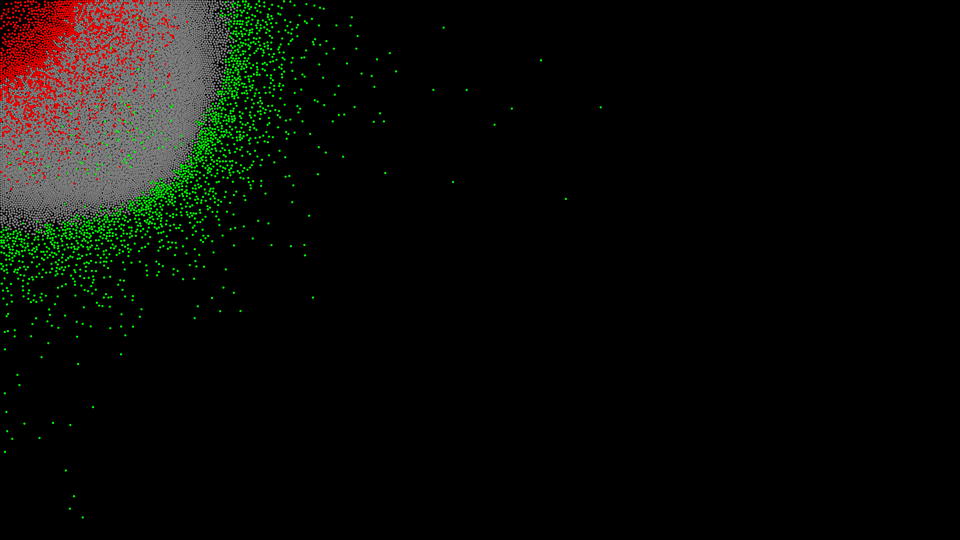
For a different effect, you can also click near a corner of the world view.
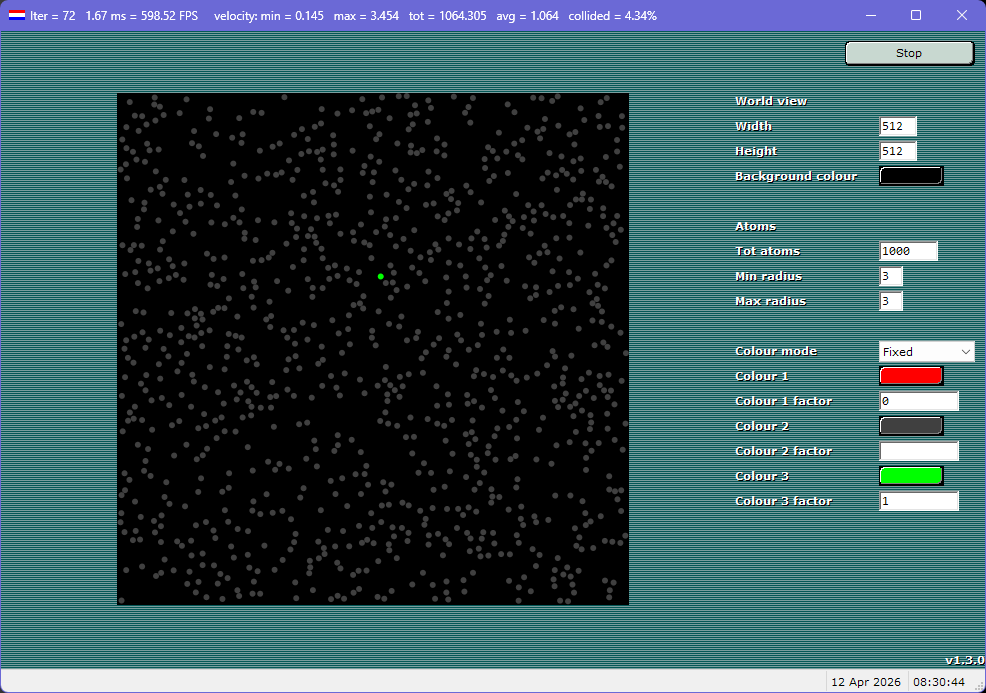
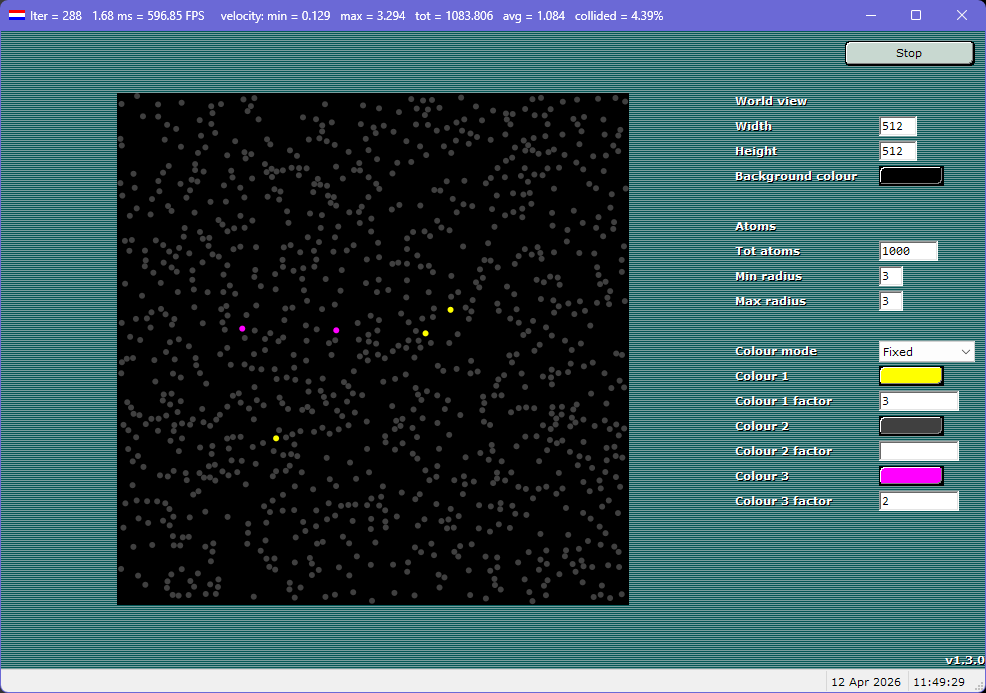
Example 7
Follow a single atom by setting one of the factors to 0, and another to 1 with a distinctive colour.
Follow a few atoms by making them a distinct colour compared to the bulk of the atoms.
Version history
v2.0.0 (12-Apr-2026)- Allow the user to choose the colours of the atoms.
- Implemented 'fixed mode', where every atom retains a fixed colour.
- All input fields are now stored in the settings file (AtomCollisions.ini).
- Window size and position are now stored in the settings file.
- In speed mode, hide colour factor 2 to give a hint to users they should not fill it in.
- The calculation of the normal vector was inaccurate (not orthonormal).
v1.3.0 (15-Mar-2026)
- The application is now portable (settings are stored in an ini file in the application's directory).
- The random speed was such that the average speed was ½✓2 (≈0.707). Now it is on average 1.0.
- Start/stop button clicks are handled faster now.
v1.2.0 (14-Mar-2026)
- With the left mouse button you can start all the atoms from a single point (like an explosion).
- Reduced the max atom size from 255 to 32 to reduce missed collisions in diagonal sectors.
- Fixed atom collisions in diagonal directions which could sometimes be missed.
- Fullscreen mode can now be toggled using the right mouse button.
v1.1.0 (07-Mar-2026)
- Updated to a newer compiler (Visual Studio 2026), requiring the latest Visual C++ redistributable pack.
- Implemented full screen mode (thanks to Papoulka for the suggestion).
- Limited atom size to [1,32] to reduce collision errors caused by atoms being in many sectors at once.
v1.0.0 (27-Dec-2024)
- Initial public release.
v0.0.4 (11-Nov-2024))
- Drastically improve the speed by splitting the world into sectors of 100x100.
v0.0.3 (04-Nov-2024))
- Drastically improve the speed by reducing the amount of draw calls.
- Improve the simulation by handling overlapping atoms better.
v0.0.2 (24-Oct-2024))
- Draw atoms as circles instead of squares.
- Use 3 colours to indicate the atoms' speed (slow, average, fast).
- Allow the user to change settings (e.g., world size, min/max atom size, amount of atoms).
v0.0.1 (12-Oct-2024))
- Start of project.